Developer AI Platform Overview*
The NationalChip Developer AI Platform is designed for single-microphone offline voice products and supports NationalChip's GX8005 and GX8006 series offline voice AI chips, providing a one-stop online visual development tool. Developers can configure the SDK, voice algorithms, and product functions with zero code and compile firmware online; they can also download the complete SDK for application development, feature extension, and deep customization.
Platform entry: NationalChip Developer AI Platform. Users can register on their own, no backend approval required, and can log in immediately after registration.
Platform Core Capabilities*
Language support
The platform currently supports configuration of Chinese phrases only.
To configure English phrases, please contact the sales team.
| Capability | Description |
|---|---|
| Visual development | Configure the SDK, voice algorithms, and product functions online, and generate firmware after submission |
| Voice interaction | Command word editing, wake word configuration and switching, recognition sensitivity adjustment, self-learning |
| Announcement and device configuration | Voice announcements, volume control, power amplifier configuration, power-off memory |
| Host interaction | UART communication and protocol interaction, connecting voice recognition results with product control |
| Scenario models | Provides industry scenario models such as heaters, fans, drying racks, lighting, bathroom heaters, tea bar machines, and induction cookers, and supports generic scenario models |
| SDK secondary development | Provides the complete SDK and supporting development documentation to meet feature extension and application customization needs |
Configuration applicability
The specific available configurations are subject to what is displayed on the page for the selected chip, application solution, and SDK version.
Preparation Before Development*
- Register a platform account and prepare a computer that can access the platform.
- Prepare a development board or module compatible with the target chip, and confirm power supply, microphone, speaker, and download interface according to the corresponding hardware documentation.
- Organize the product type, wake words, command words, and announcement content; if communication with the host is required, also prepare the UART parameters and the transmit/receive protocol.
- If you need to modify the application code, prepare a local compilation environment according to the development environment guidance in Firmware Flashing and SDK Compilation. Users who directly use platform-generated firmware can first complete the online configuration.
| Chip | Hardware reference materials |
|---|---|
| GX8005 | GX8005 Development Board, GX8005 Gold Finger Module |
| GX8006 | GX8006 Development Board |
Development boards and modules can be viewed and purchased through Taobao Mall.
Product Development Process Overview*
Register and log in → Create product → Enter version configuration → Configure voice and hardware functions → Save and submit for compilation → Download firmware and SDK → Flash and verify on board → Perform secondary development as needed.
Illustrated reading instructions
The following illustrations are described in the order of platform operations. The red numbers in the figures correspond one-to-one with the descriptions on the right; the parameter values in the screenshots are for demonstration, and actual configurations should match the target hardware and product requirements. Click a screenshot to enlarge it and view fields and annotations.
I. Registration and Product Creation*
1. Registration and Login*
For first-time use, enter the registration process from the platform login page and complete registration according to the page prompts; no backend approval is required. Existing accounts can log in directly.
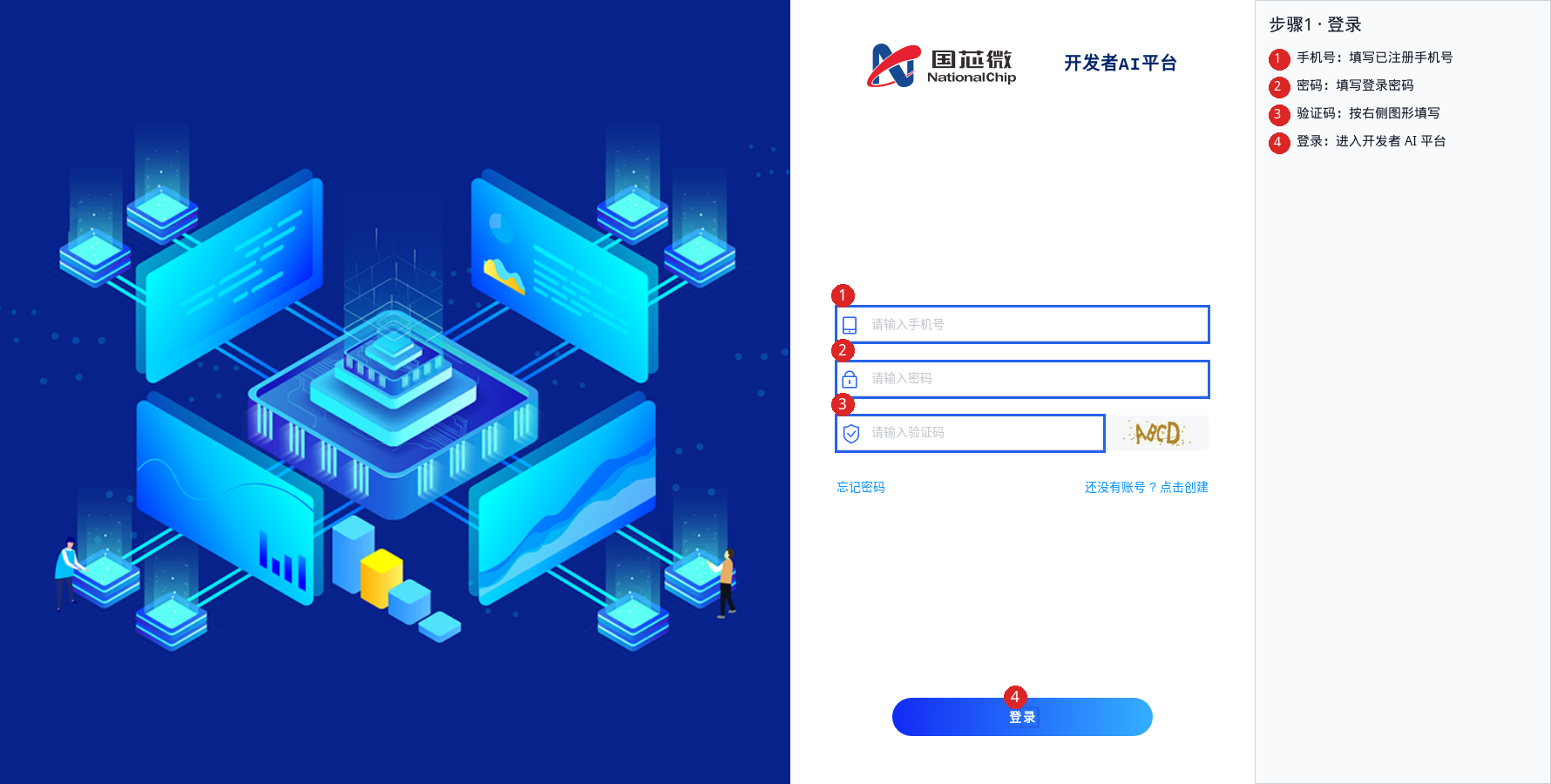
- Enter the registered phone number
- Enter the password
- Enter the verification code according to the graphic on the right
- Click "Login" to enter the platform
2. Enter the Product List from the Home Page*
After successful login, you enter the home page: /#/dashboard. The home page is divided into the following areas by purpose:
| Home page area | Purpose |
|---|---|
| Must-read for beginners | View product development process guidance and video tutorials |
| Offline voice products | Configure offline voice products through "Firmware and SDK Development"; learn about supporting hardware through "Development Kit" |
| Online/offline voice products | Enter the GX8006 + WiFi/CAT1 large model development package and corresponding development kit |
Development entry for this tutorial
This tutorial is intended for GX8005 and GX8006 single-microphone offline voice products. Please select Offline Voice Products → Firmware and SDK Development → View Details.
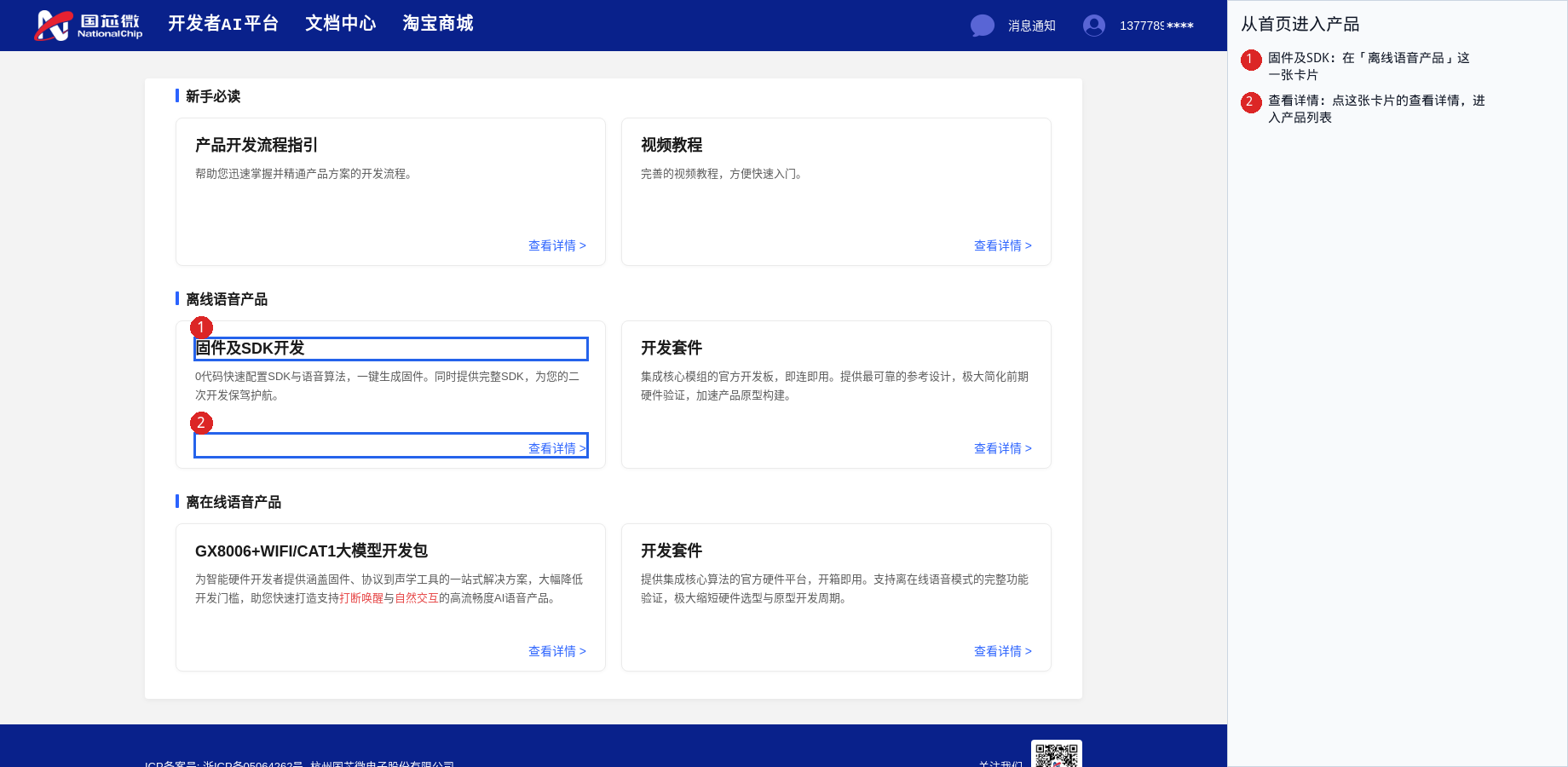
- Find Firmware and SDK Development under "Offline Voice Products"
- Click View Details at the lower right of this card to enter the product list (
/#/product/list)
Other entries on the home page
"Must-read for beginners" is for viewing materials, and "Development Kit" is for learning about hardware; the large model development package under "Online/offline voice products" below belongs to another type of solution.
3. Create a Product*
Click Create Product in the upper left corner of the product list to enter "Create Product / Fill in Product Information" (/#/product/create).
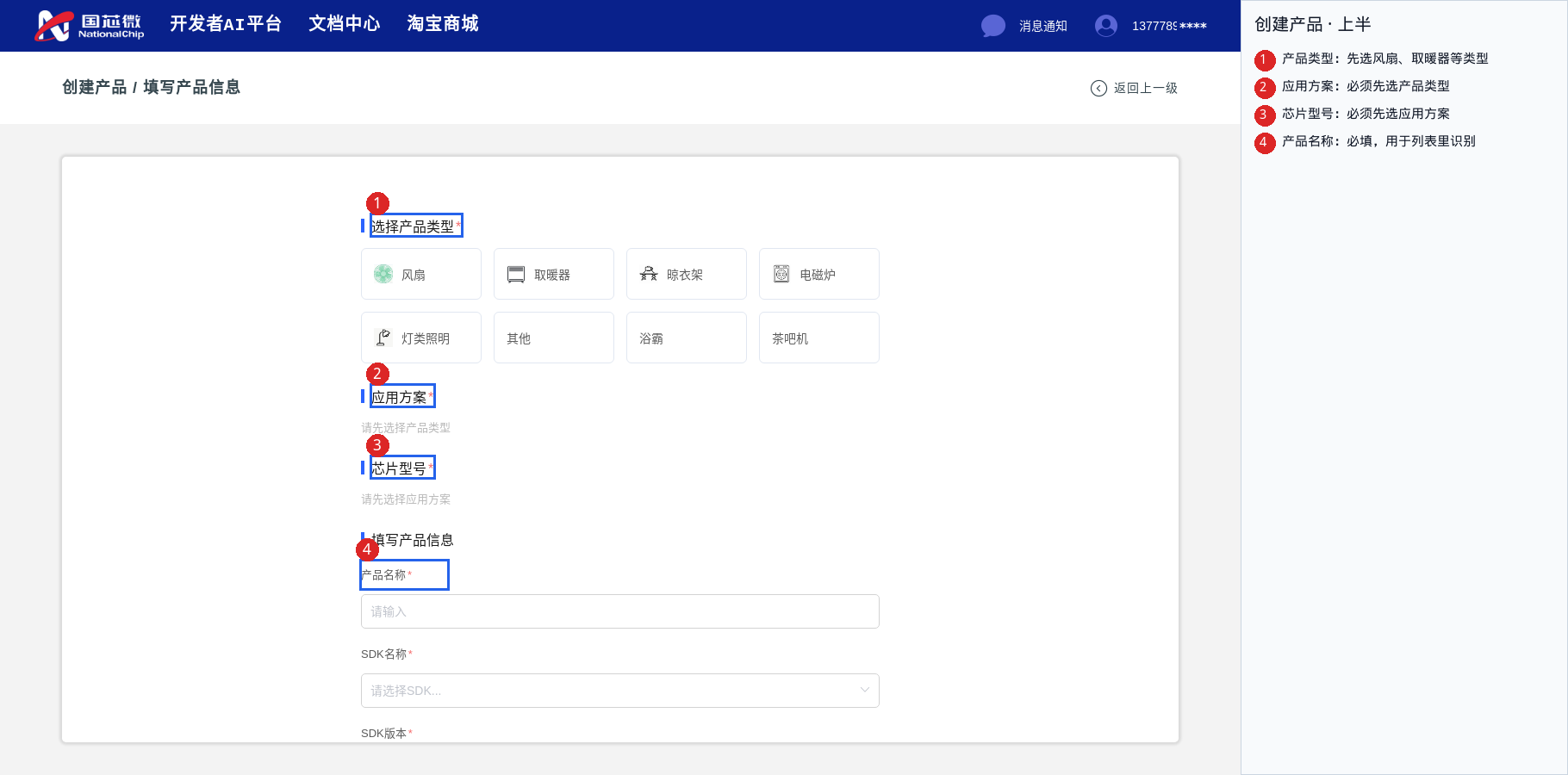
- Product type: Select fan, heater, etc. first; only then do the next two items become selectable
- Application solution: Displays "Please select a product type first" when no product type is selected
- Chip model: Displays "Please select an application solution first" when no application solution is selected
- Product name: Required; used to identify the product in the list
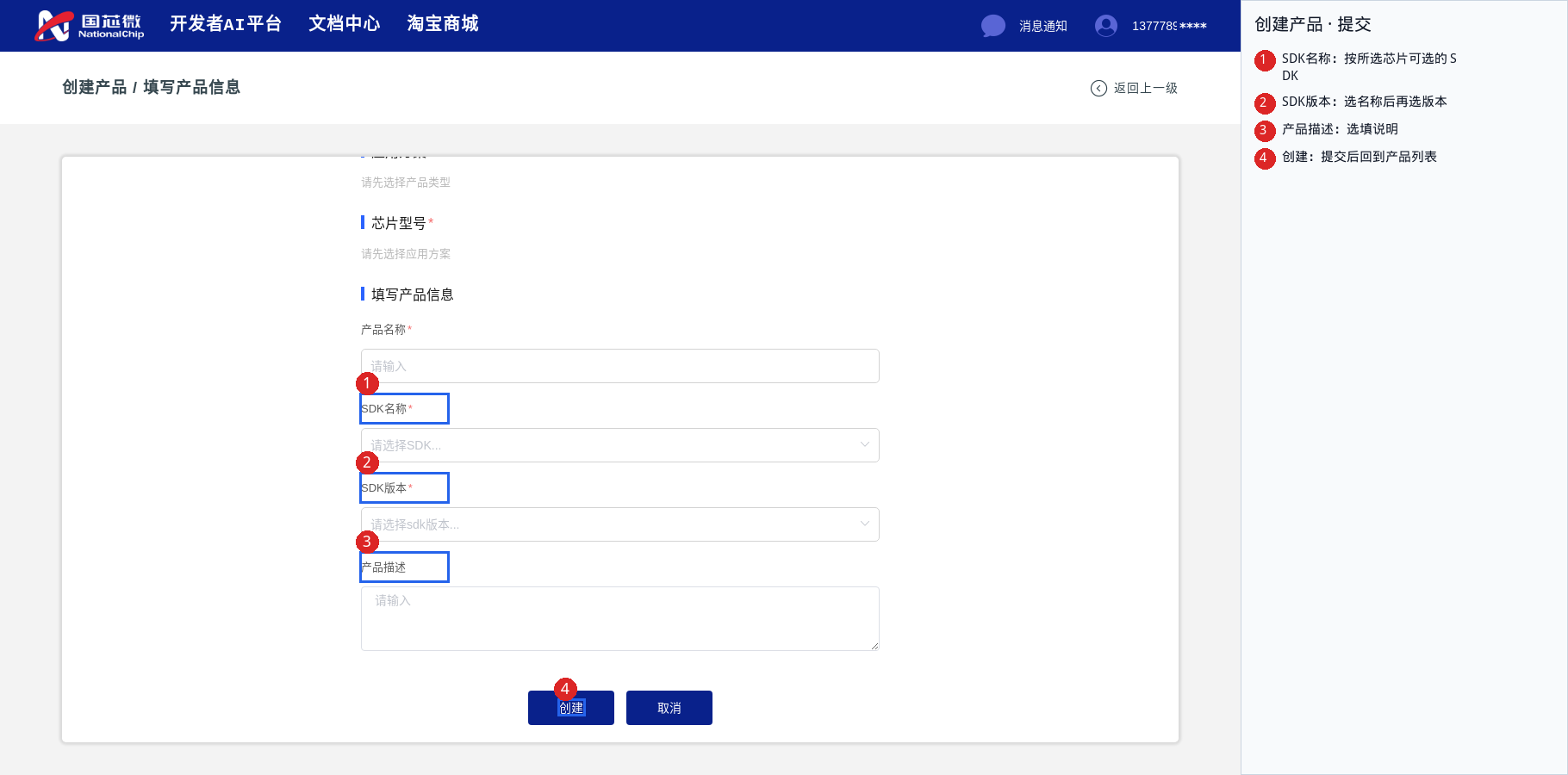
- SDK name: The options depend on the previously selected chip
- SDK version: Select the SDK name first, then the version
- Product description: Optional
- Create: After submission, return to the product list. If the product already exists, you can skip this page and click "View" directly in the list
4. Enter the Product and Version Configuration*
After creating a new product, return to the product list and find the product you just created; existing products can continue configuration directly from here. In both cases, click "View" for the target product, enter that product, and continue with version configuration.
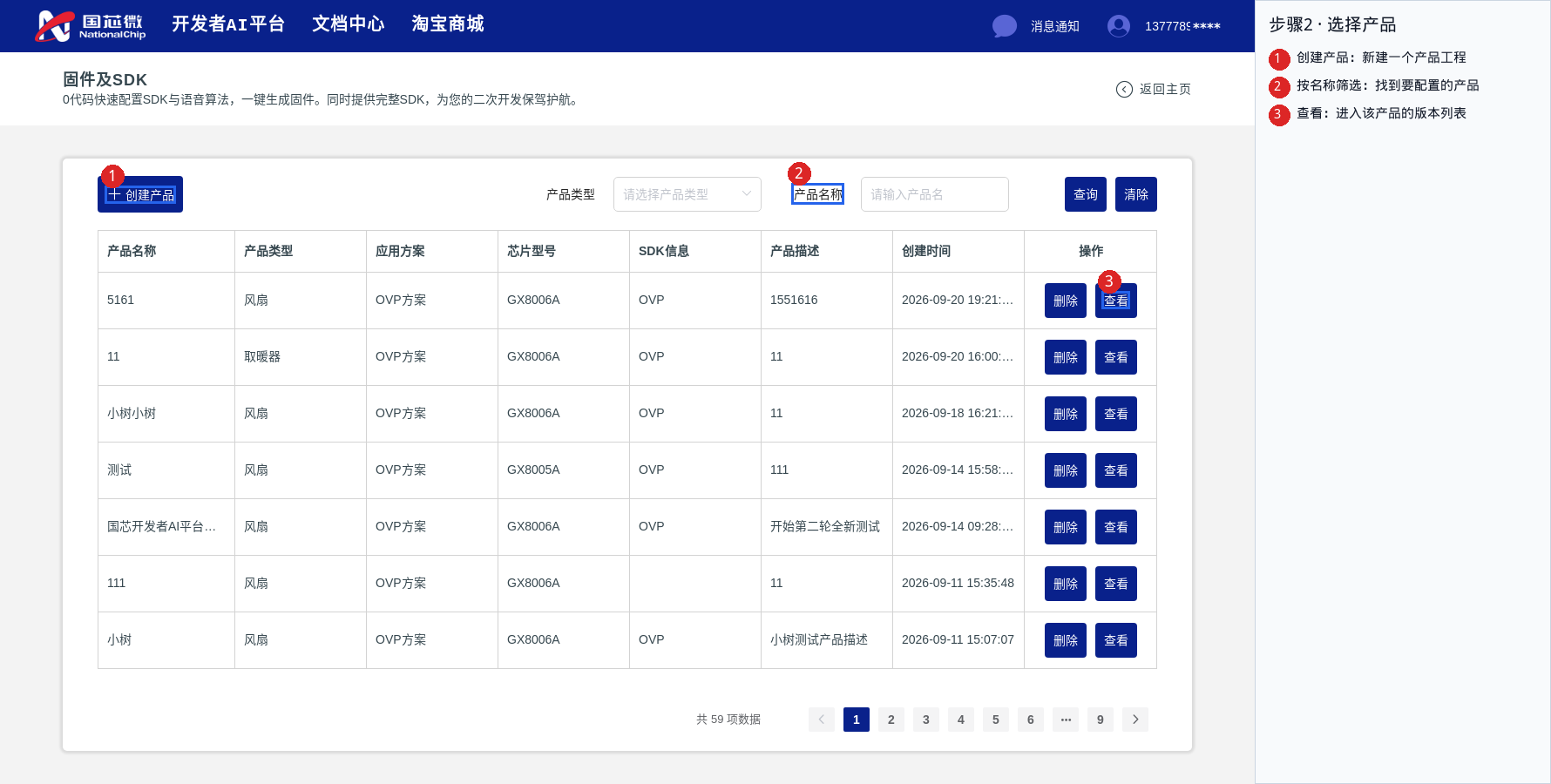
- Create Product: Create a new project (can be skipped if the product already exists)
- Product name: Filter the target product by name
- View: Enter the product, then open the firmware version to be modified and enter "Create Version / SDK Configuration"
II. Voice and Hardware Function Configuration*
1. Configuration Page Entry*
The configuration page title is "Create Version / SDK Configuration". After modifying a section, prioritize clicking that section's own save button; after all modifications are complete, click "Save All Information" at the bottom of the page, and finally "Submit Now".
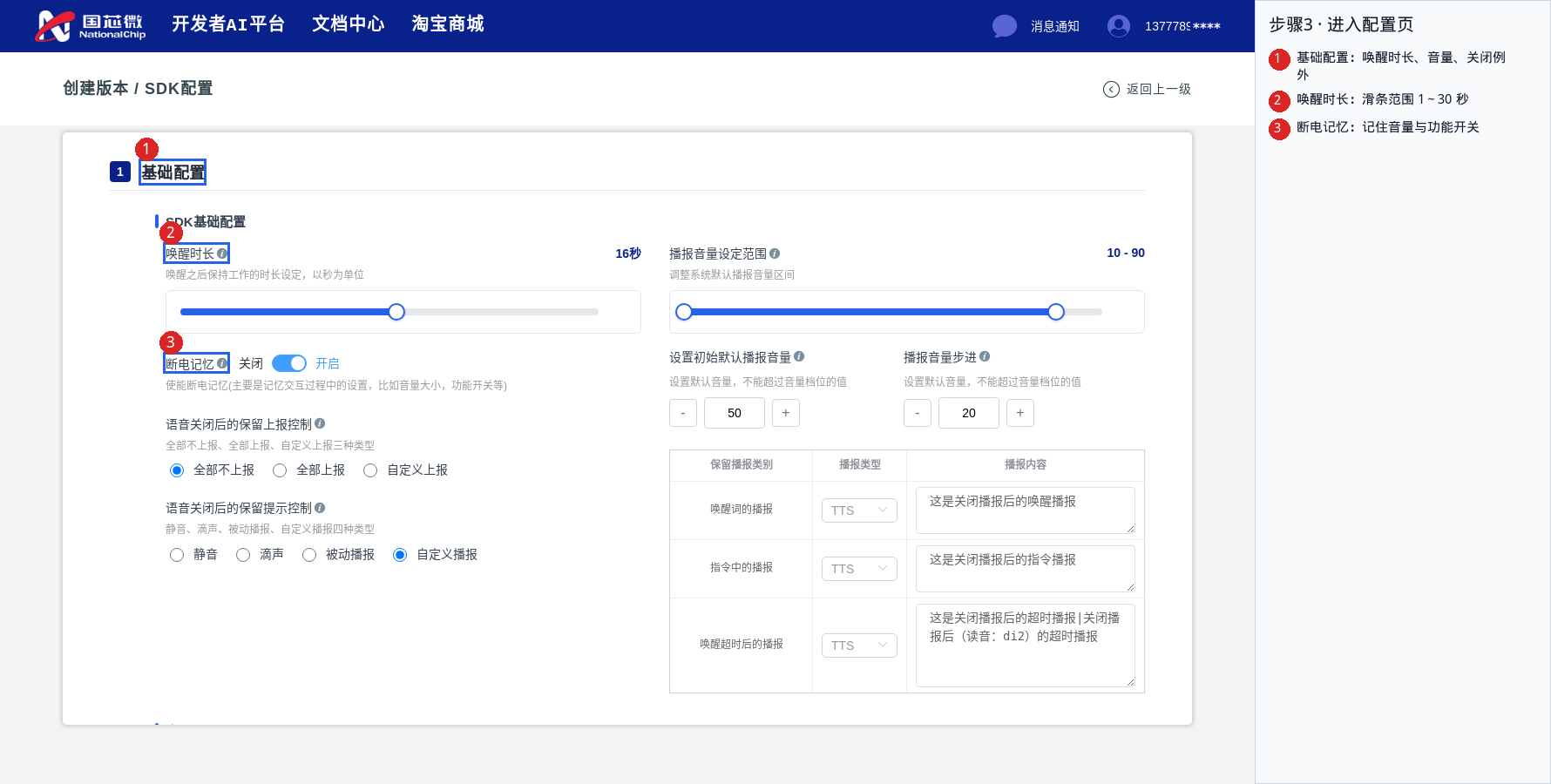
2. Basic Configuration*
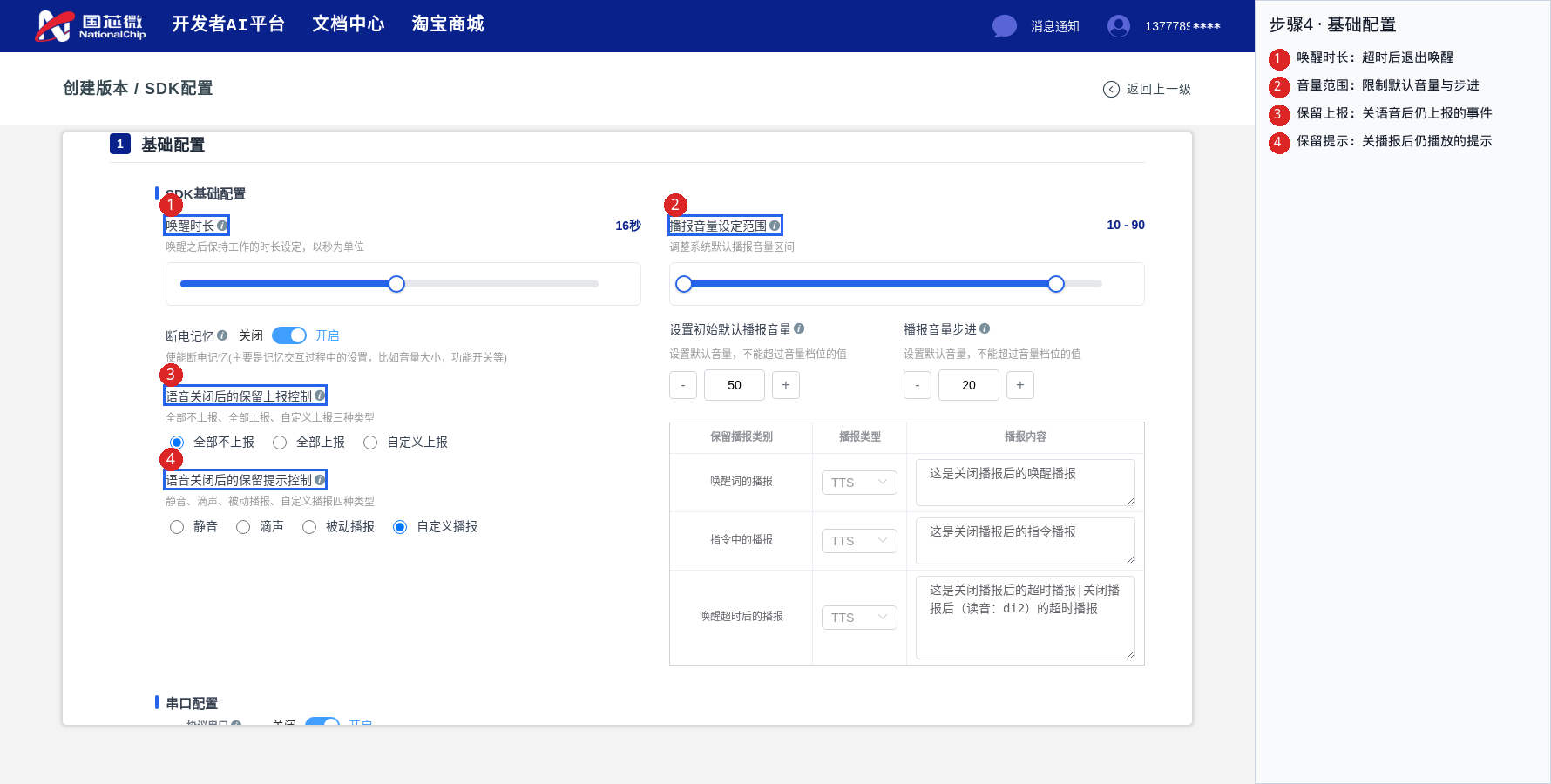
- Wake duration: The time after waking during which commands remain recognizable; slider 1–30 seconds
- Announcement volume setting range: Limits the subsequent default volume and step
- Retained reporting control: After "Voice announcement and control" is disabled, which UART events are still reported (report none / report all / custom reporting)
- Retained prompt control: After announcements are disabled, which prompts are still played (mute / beep / passive announcement / custom announcement)
Other basic configurations
The same page also includes: power-off memory, setting the initial default announcement volume, and announcement volume step. For custom announcements, fill in three categories separately: wake words, commands, and timeouts.
3. UART Configuration*
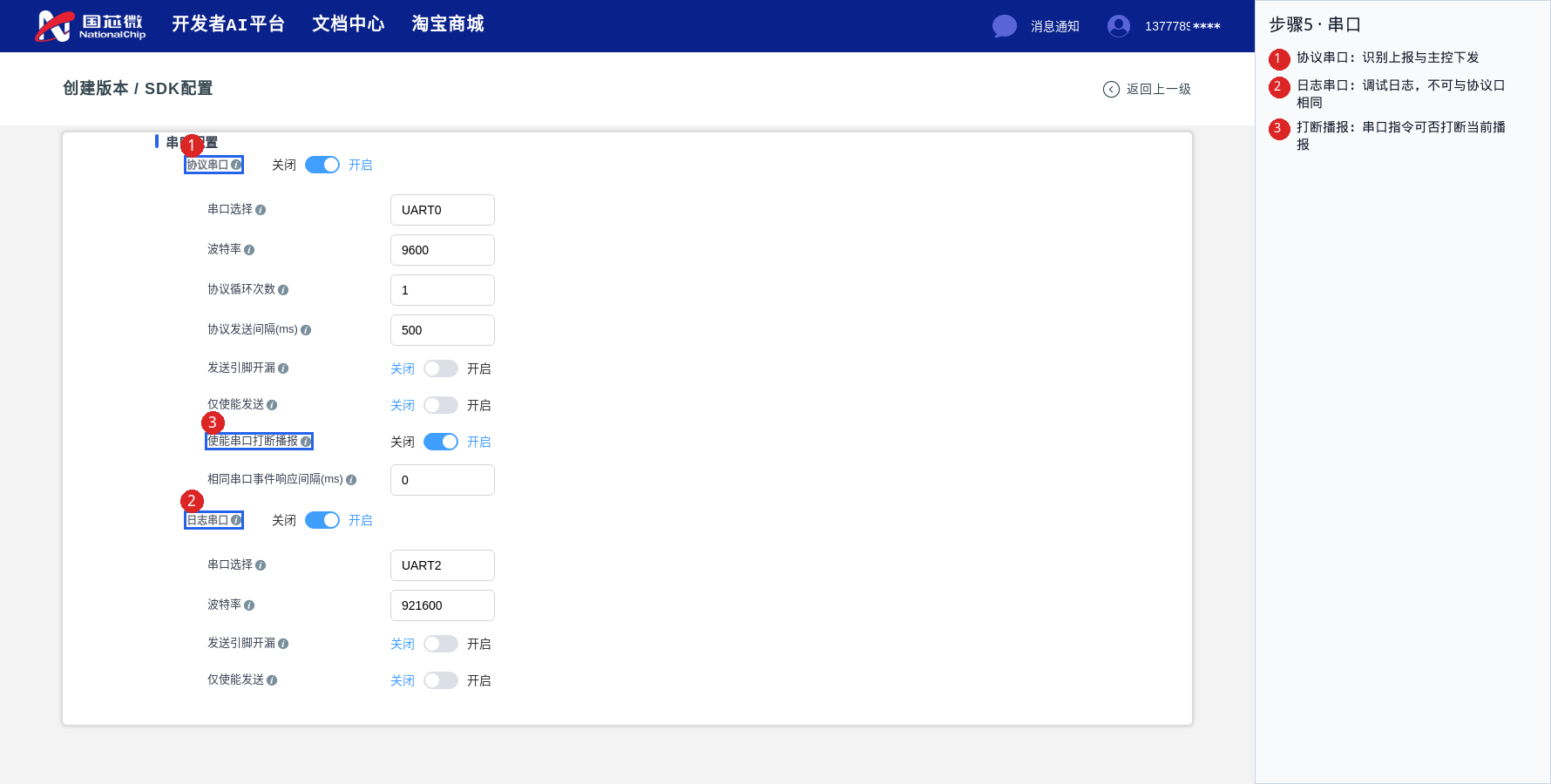
- Protocol UART: Business protocols such as recognition reporting and host-issued commands. If disabled, related protocols do not take effect
- Log UART: Only outputs debug logs.
- Enable UART to interrupt announcements: Whether to interrupt the current announcement when a UART command is received (meaningful only when the protocol port can receive)
UART ports must not conflict
The protocol port and the log port cannot select the same UART.
After the protocol port is enabled, you can also configure baud rate, protocol loop count, protocol send interval, send pin open-drain, and response interval for the same UART event. The log UART additionally has UART selection, baud rate, and send pin open-drain.
4. Announcement Configuration*
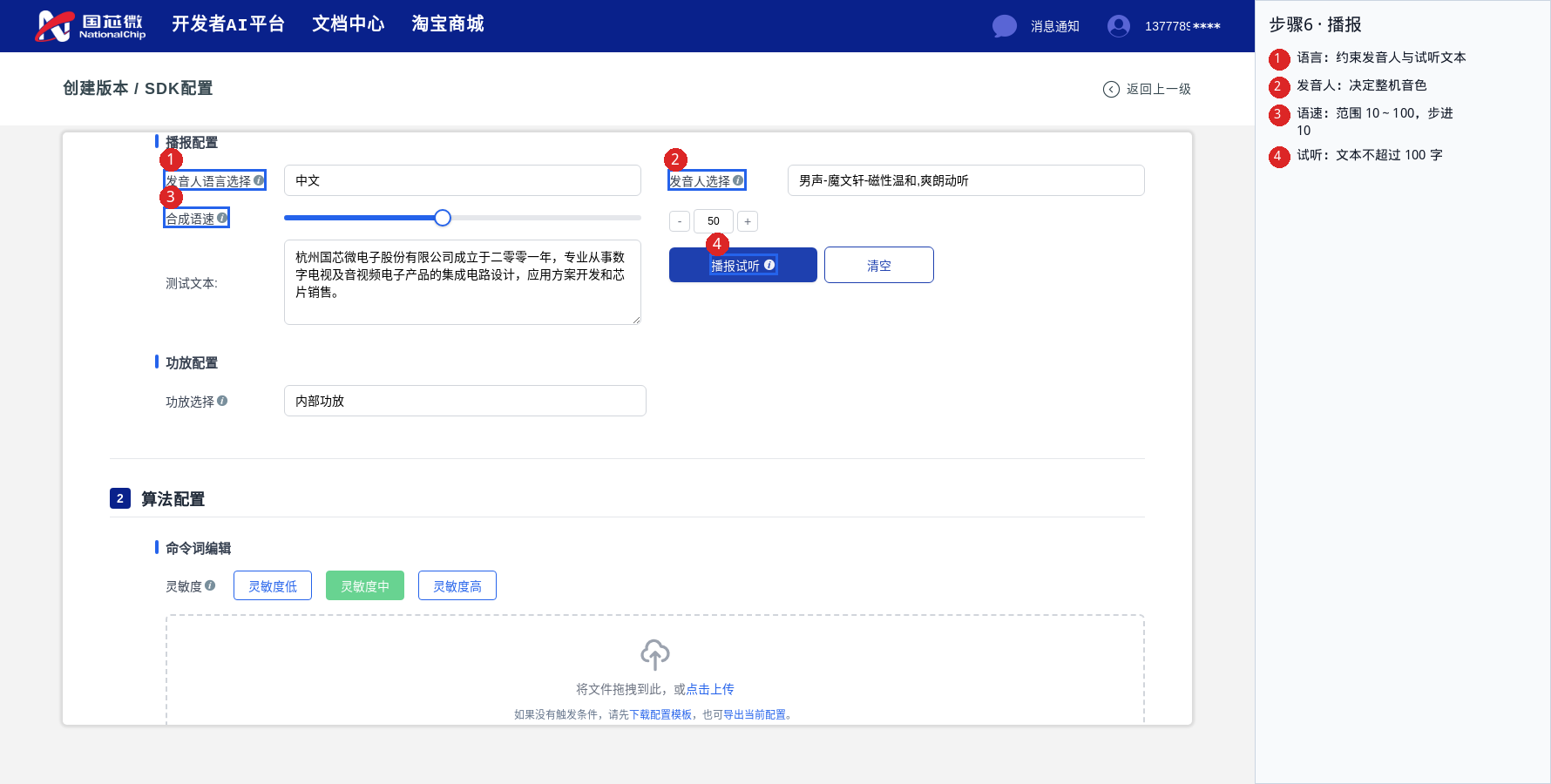
- Speaker language selection: Chinese speakers cannot preview English, and English speakers cannot preview Chinese
- Speaker selection: Determines the overall timbre and must first match the language in the previous item
- Synthesis speed: Slider 10–100, step 10
- Announcement preview: Select the speaker and speed first; test text must not exceed 100 characters
5. Power Amplifier Configuration*
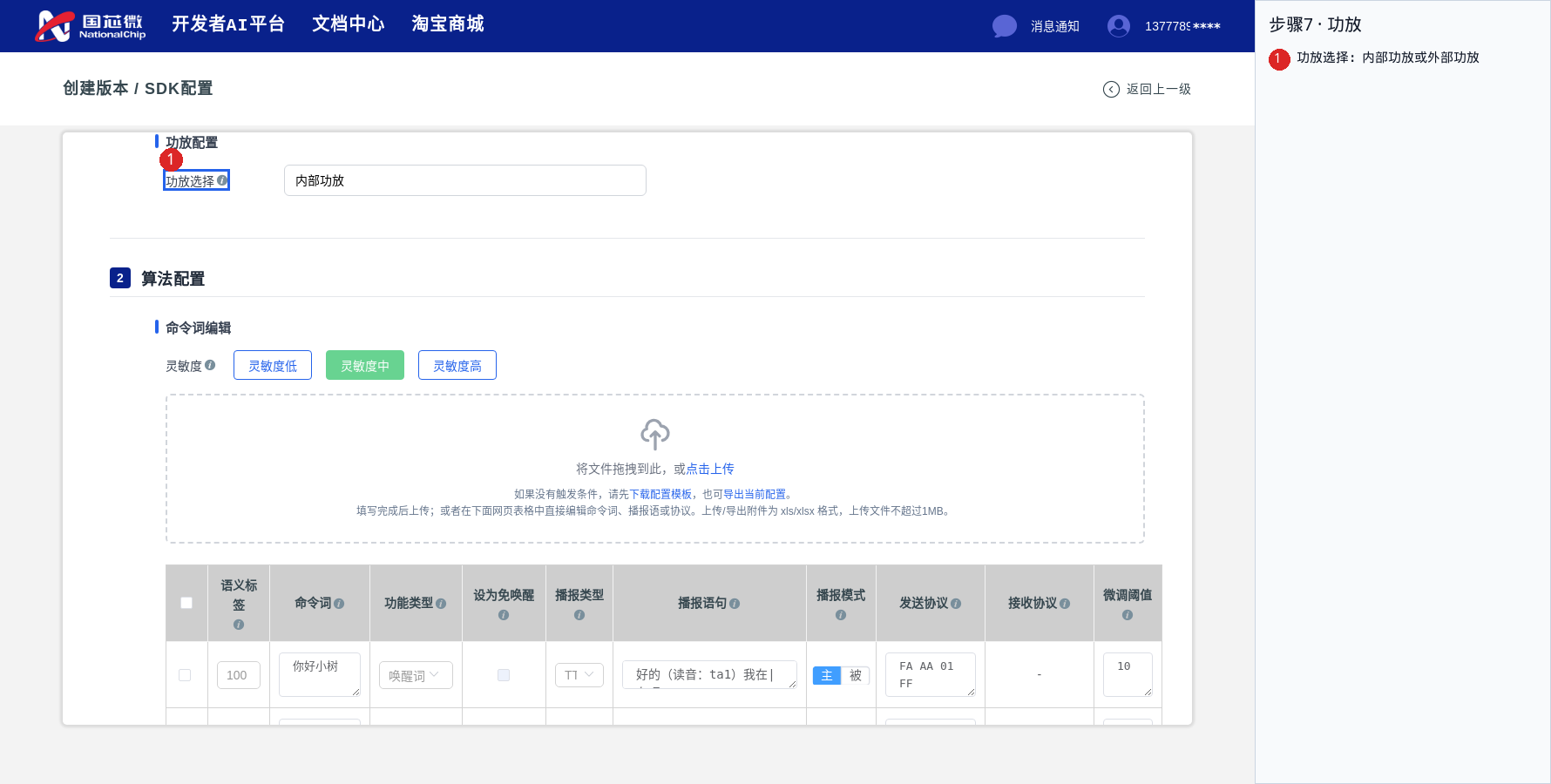
- Power amplifier selection: Internal power amplifier or external power amplifier
- After selecting an external power amplifier, continue to configure the power amplifier mute control pin (must be in the list of available pins) and the mute enable level (high level / low level)
Screenshot example
The current example selects the internal power amplifier, so the mute pin is not expanded.
6. Command Word Editing*
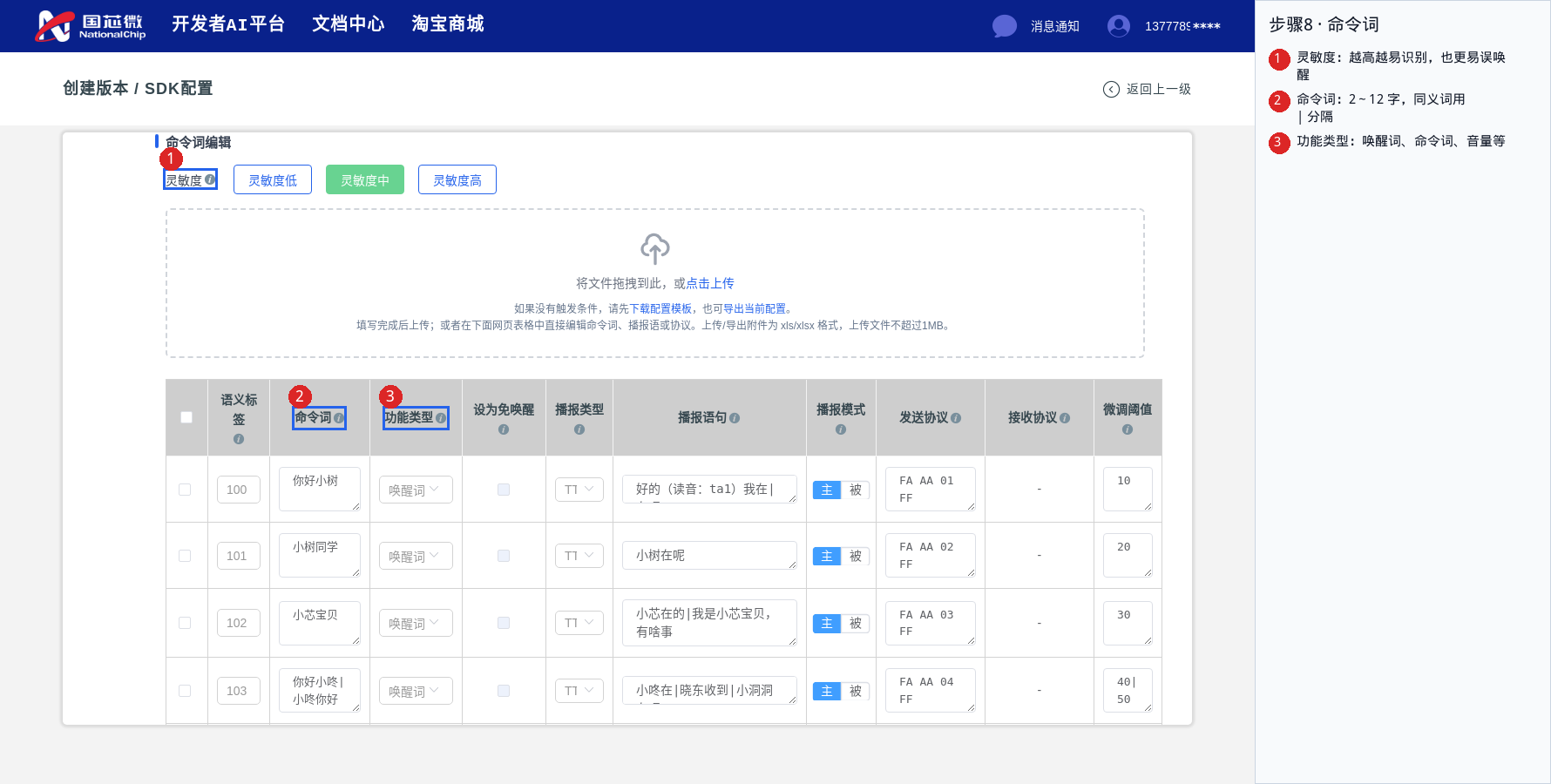
- Sensitivity: Low / Medium / High. The higher the value, the easier it is to recognize, but false wake-ups also increase
- Command words: 2–12 Chinese characters; separate multiple expressions of the same event with
|; words cannot be repeated; at least one wake word is required - Function type: Determines whether this row is a wake word, command word, volume, announcement switch, welcome message, etc. After selection, the other columns in the same row are constrained accordingly
7. Wake Word Switching (Optional)*
Conditions for wake word switching to take effect
To use wake word switching, configure at least 2 primary wake words and enable at least one of the following switching modes.
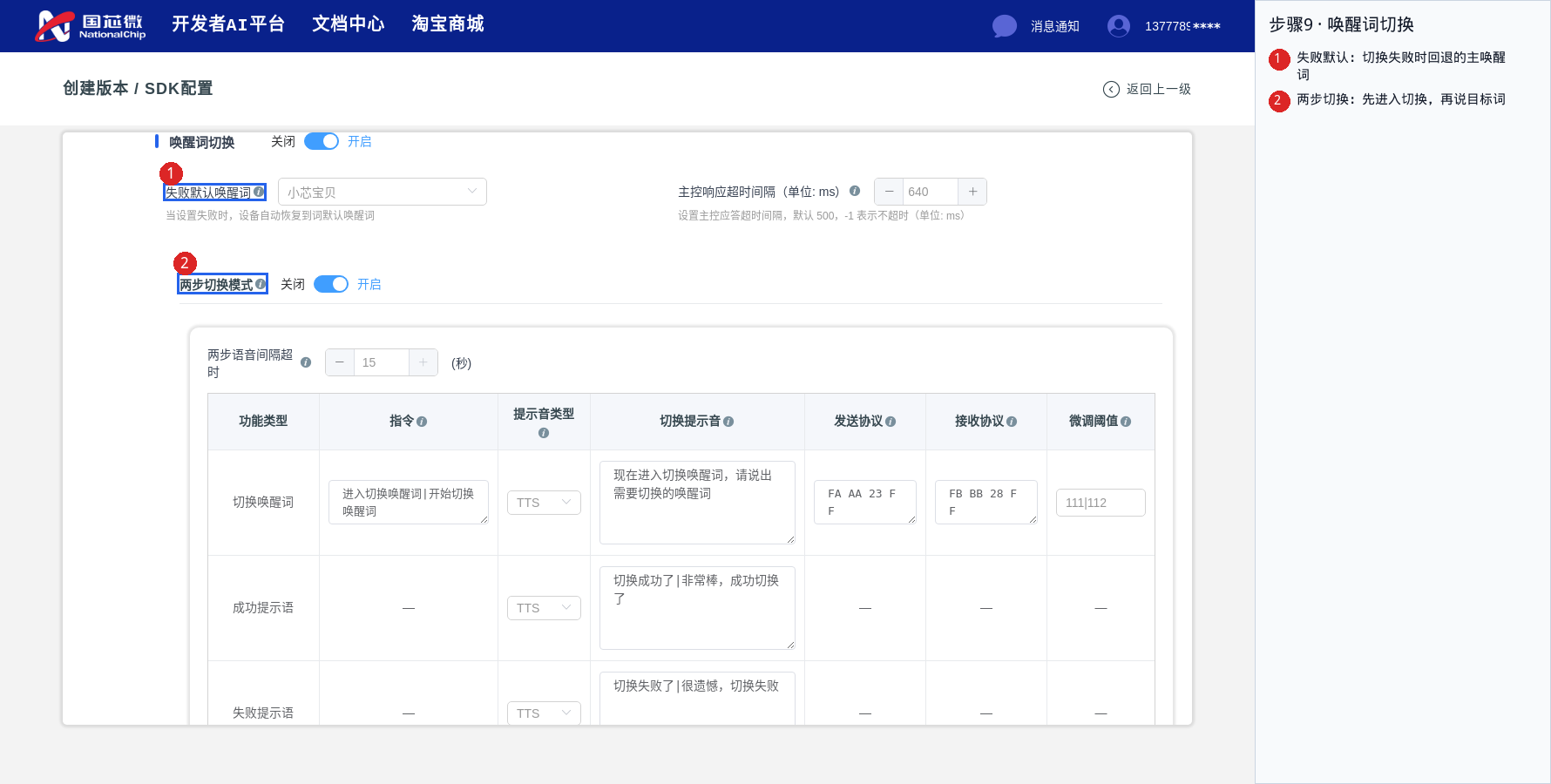
- Fallback default wake word: The primary wake word restored when switching fails; must be a currently valid primary wake word
- Two-step switching: First say the command to enter switching, then say the target wake word
- Host-synchronized switching: The module first reports that it can be controlled, then the host issues the protocol specifying the wake word (the query command must have a send protocol, and the receive wake word command must have a receive protocol)
- Command switching: Use a single command to switch directly to the target wake word
After modifying the commands, prompt tones, and protocols for the three modes, click Save Wake Word Switching.
8. Self-Learning Configuration (Optional)*
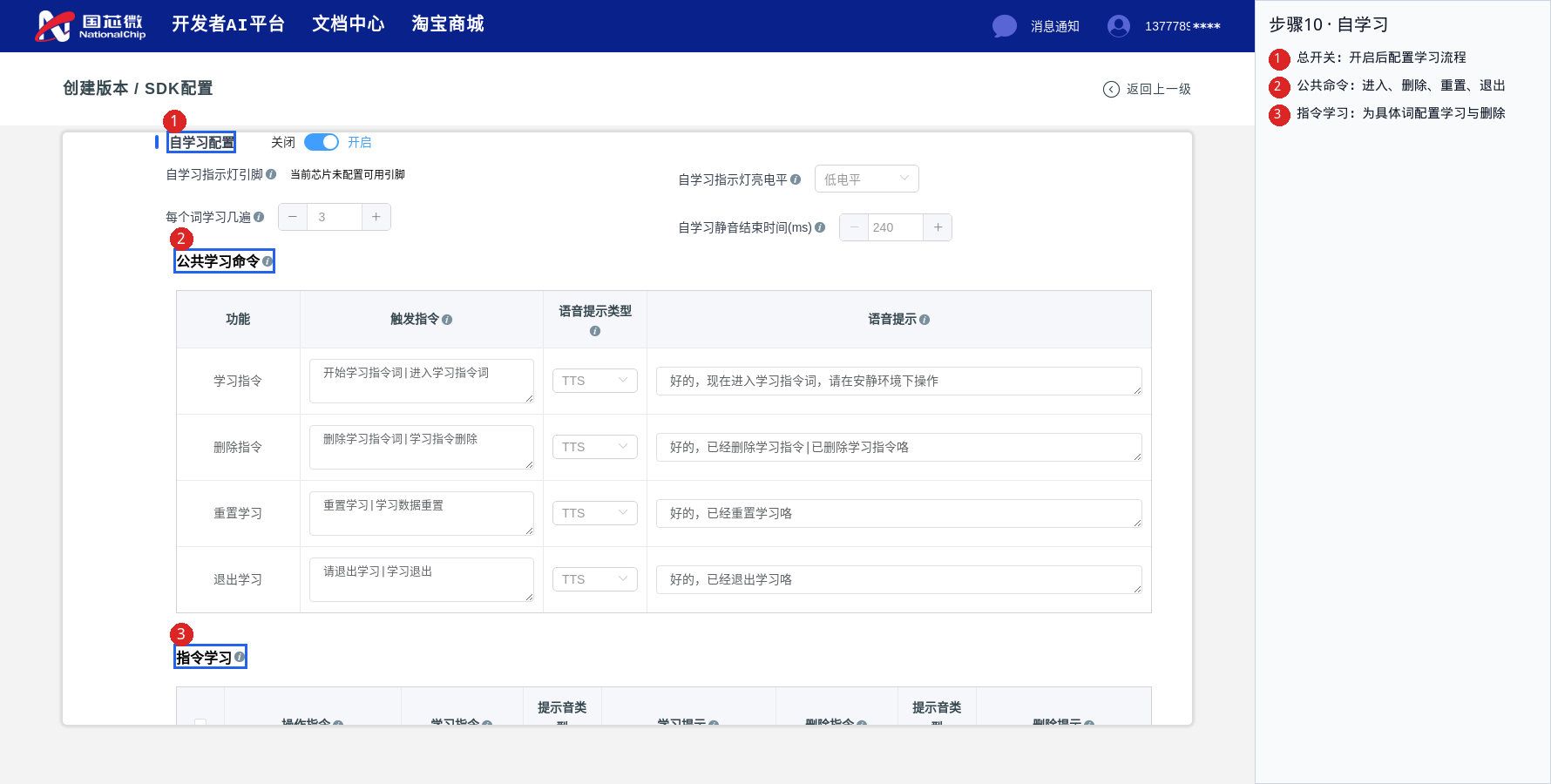
- Turn on the main switch of Self-Learning Configuration
- Common learning commands: Enter learning, delete, reset, and exit; the page types are fixed, so only the trigger words and prompts need to be changed
- Command learning: Select an existing command word, then configure the expressions and prompts for "learn this word / delete learned". At least 1 item, at most 15 items
- After modification, click Save Self-Learning Configuration
Additional self-learning configuration
The self-learning indicator pin, how many times to learn each word, the active level of the self-learning indicator, and the self-learning mute end time are at the top of the section. The functions of each status voice row are fixed, so only the prompt tones need to be changed.
III. Submission, Download, and Flashing*
1. Save and Submit*
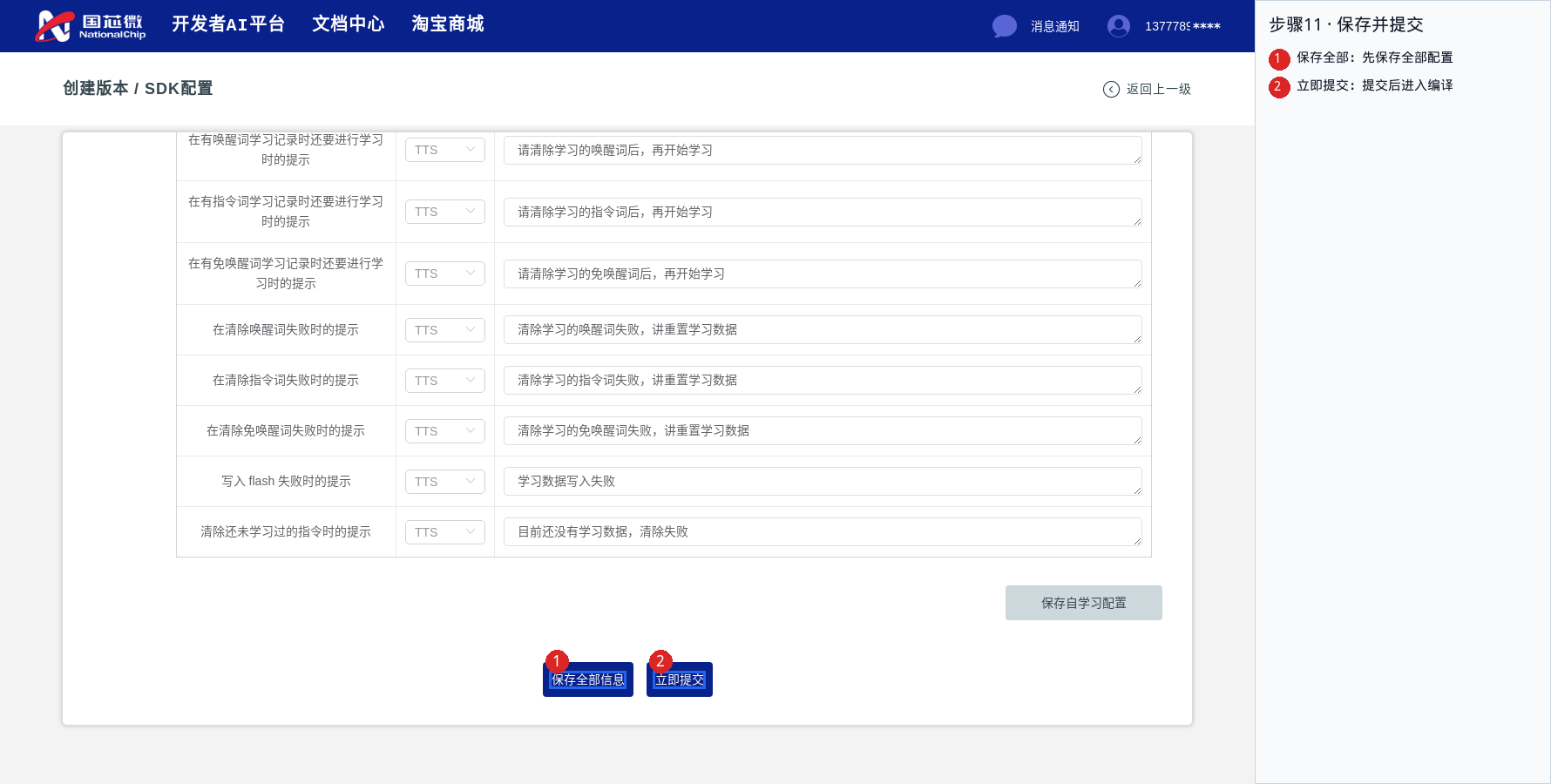
- Save All Information: Execute once after all sections have been modified
- Submit Now: Submit for compilation. If there is red validation text on the page, fix it according to the prompts before submitting
- Use Export Current Configuration when a backup is needed; use the template in the command word area when importing from a table
Save and submit order
Save each section separately → Save all information → Submit now → Return to the version list to download firmware.
When an error occurs during saving or submission
First correct the configuration according to the red text or pop-up prompts on the page, then save and submit again.
2. Download, Flashing, and SDK Development*
After submission is complete, return to the version list to view the compilation result and download the firmware and SDK for the corresponding version. For the download entry, firmware selection, flashing tool usage, and local compilation steps, see Firmware Flashing and SDK Compilation.
- Directly use the generated firmware: Select the corresponding firmware according to the hardware model, complete flashing, then restart the device and verify functions.
- Perform secondary development: Download the corresponding SDK, configure the compilation environment, copy the configuration, and compile according to the above document, and extend product functions in the application directory.
Keep version materials
It is recommended to keep the product name, chip model, SDK version, exported configuration, and download package for reproduction and subsequent version maintenance.
IV. On-Board Verification and Troubleshooting*
1. Function Verification*
After flashing is complete, it is recommended to check in the following order. The expected results should be consistent with the configuration saved and submitted this time.
| Check item | Operation and expected result |
|---|---|
| Wake and command recognition | Say the configured wake word, then say the command word within the wake duration, and check whether the corresponding function is triggered |
| Voice announcement | Check the prompt content for wake, command, timeout, etc., and whether the timbre and volume match the configuration |
| UART interaction | After enabling the protocol UART, check the recognition report content; when a receive protocol is configured, further verify the response after the host issues a command |
| Power-off memory | After enabling, adjust the volume or related function switches, power off and restart, and check whether the settings are retained |
| Wake word switching | After configuring multiple primary wake words and enabling a switching mode, check whether the switching prompt and target wake word take effect |
| Self-learning | After enabling, complete learning, recognition, deletion, and other operations according to the configured commands, and check the prompt tones and recognition results |
2. Common Troubleshooting*
What should I do if submission fails?
Check the red text or pop-up prompts on the page, required fields, and duplicate command words, then correct them and save and submit again.
What should I do if flashing fails?
Check the chip selection, firmware file, UART, power supply, and download mode according to the flashing documentation, and lower the flashing baud rate if necessary.
What should I do if it cannot wake up or recognize commands?
Verify the flashed version, microphone connection, actually configured entries, and wake duration, and retest in a quiet environment.
What should I do if there is no announcement?
Check the speaker connection, announcement switch, volume, and internal or external power amplifier configuration; when using an external power amplifier, verify the mute control pin and active level.
What should I do if the UART does not respond?
Check whether the protocol UART is enabled, whether the pin connection and baud rate match, and whether the protocol content is consistent, and confirm that the protocol port and log port are not set to the same port.