Overview*
This guide provides a detailed introduction to the GX8006_WIFI software solution, covering device network configuration procedures, LED status descriptions, and usage steps.
The public release software has been published in GX8006 Large Model Development Kit.
For related hardware solution documentation, see: GX8006_WIFI Large Model Solution
1. Solution Overview*
This solution provides an integrated, complete module that combines the powerful capabilities of the GX8006 voice MCU and the LN882H WiFi MCU.
The GX8006 voice MCU handles voice wake-up, recording, and audio playback, delivering an exceptional voice interaction experience. The LN882H WiFi MCU ensures stable network connectivity, supporting the upload and download of interactive data such as voice, ensuring seamless communication between the device and the cloud-based large model.
Through the close collaboration of these two components, this module offers users an integrated intelligent solution suitable for various IoT application scenarios.
2. Quick Start*
2.1. Network Configuration*
2.1.1. Qiniu Cloud Network Configuration Method*
2.1.2. Xiaozhi Cloud Network Configuration Method*
- Enter Network Configuration Mode: Press and hold the NET button on the development board until the voice prompt "Configuring network" is announced.
- Open the Configuration Mini Program: Follow the prompts and click Search Device. Select this device from the list of found devices, then click the Add button on the right.
- Configure Network:
- Click the WiFi name dropdown menu and select the WiFi network to be configured for the development board from the list. The device must be within range of this WiFi network. The device will periodically update the WiFi list in the dropdown menu.
- Enter the WiFi password and click Connect. The mini program will display the configuration progress. Please pay attention to the prompts on both the mini program and the device.
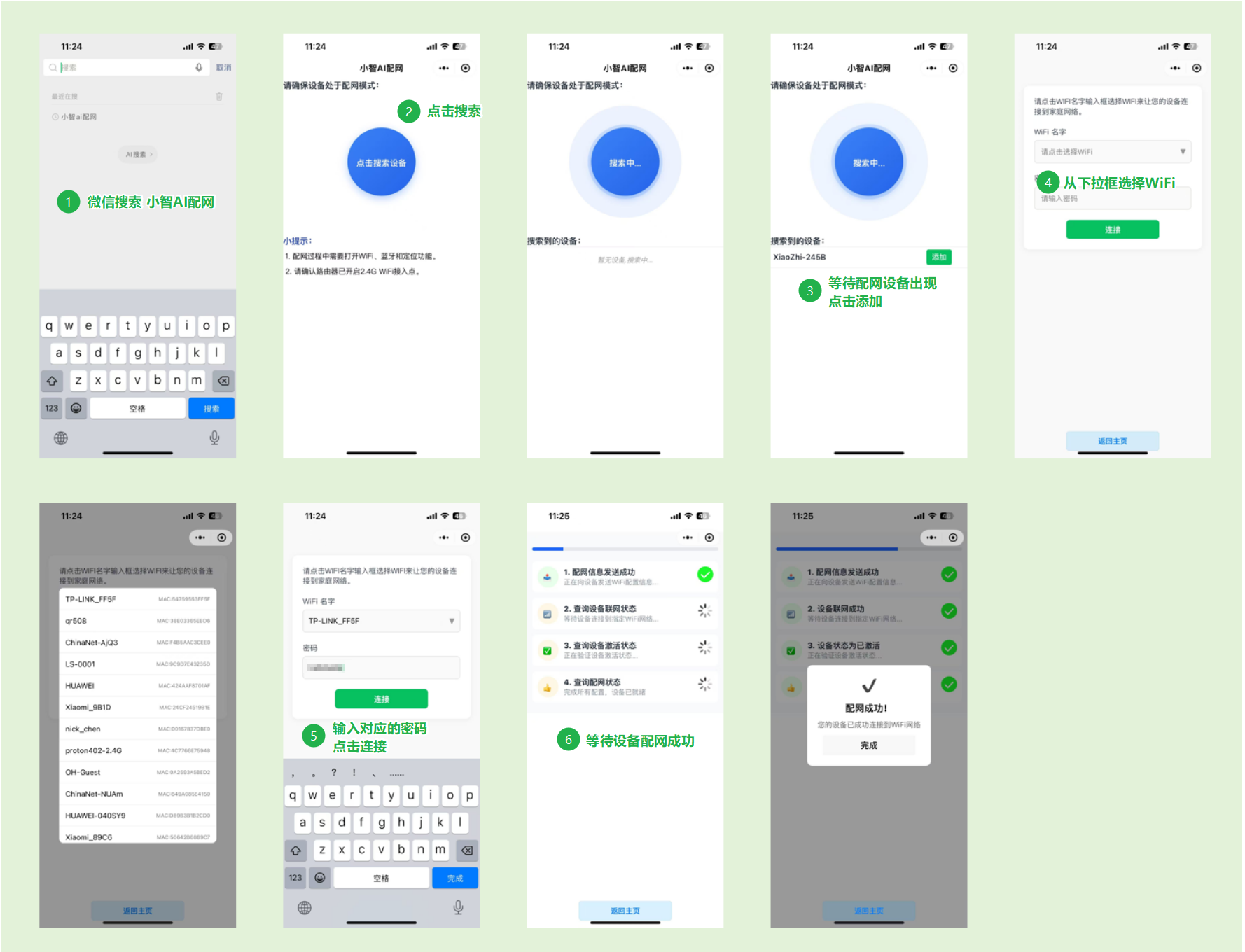
GX8006_WiFi Mini Program Network Configuration Instructions
2.2. Successful Network Connection*
When the device successfully receives the network configuration information, it will announce "Network configuration information received". At this point, the device is restarting, and the user needs to wait briefly.
Subsequently, the device will announce "I am connected to the network", indicating that the device has successfully connected to the network, and the user can begin voice interaction.
3. Operating Status Indication*
| Indicator Light | Status | Meaning |
|---|---|---|
| NET | Steady On | Interacting with the large model |
| SPK | Blinking | Playing audio |
| VAD | On | Human voice detected |
| Off | No human voice detected for a period of time |
4. Usage Flow*
- Wake Up the Device: Say "Hello Xiaozhi", the device responds with "Here or a beep sound".
- Voice Interaction: Directly speak your command/question (the VAD light is on while the device detects speech).
- Wait for Response: Wait for the device to play the audio sent from the cloud (the SPK light blinks during playback).
- Switch Conversation Mode: When the device is ready, double-press the BOOT button to switch conversation modes. The following modes are currently supported for cyclic switching, and the current mode is remembered.
| Conversation Mode | Conversation Method |
|---|---|
| Free Conversation Mode (Default) | After waking the device with the wake word, you can speak freely to start a new conversation or interrupt the current one. |
| Press-and-Hold Conversation Mode | To start a new conversation or interrupt the current one, press and hold the BOOT button, wait for the device to respond with "Here" or a beep sound, then speak your command. Release the button after finishing your command. |
| Button Conversation Mode | To start a new conversation or interrupt the current one, single-press the BOOT button, wait for the device to respond with "Here" or a beep sound, then speak your command. The device automatically detects when you have finished speaking. |
| Wake Word Conversation Mode | To start a new conversation or interrupt the current one, wake the device using the wake word, then speak your command. The device automatically detects when you have finished speaking. |
| Q&A Mode | Wake the device using the wake word to start a conversation round. The device can be interrupted by the wake word during playback. Outside of playback, you can speak freely. The session ends after a period of inactivity, and the wake word is required to start the next conversation round. |
5. Precautions*
- On network configuration failure: Press and hold the NET key again to trigger network configuration mode.
- Network anomalies: Check if the NET light is steadily on during conversation. If not, restart the device or reconfigure the network.
- Wake-up timeout: If the VAD light turns off, you need to say the wake word again.
- During normal operation, the serial port used for communication between the 8006 and LN882H must not be connected to external loads.
6. Revision History*
| Modification Date | Version | Author | Description |
|---|---|---|---|
| 2025/4/6 | V1.0 | zhuhy | Initial version |
| 2025/4/11 | V1.1 | zhuhy | Temporarily added a fixed network version due to poor network configuration experience. |
| 2025/4/14 | V1.2 | zhuhy | Added voice prompt updates, optimized network configuration and successful connection interaction. |
| 2025/5/19 | V1.3 | zhuhy | Updated demo board; network configuration changed from BOOT key to NET key; indicator lights changed to NET, SPK, VAD. |
| 2025/5/25 | V1.4 | zhuhy | Updated VAD indicator light description and web network configuration instructions. |
| 2025/5/26 | V1.5 | zhuhy | Updated Bluetooth network configuration instructions. |
| 2025/6/4 | V1.6 | zhuhy | Updated usage flow description: 1. VAD light only turns on during voice interaction; 2. Added mode switching and descriptions for each mode. |
| 2025/6/9 | V1.7 | zhuhy | Added specific BLE mini program network configuration flow. |
| 2025/7/11 | V1.8 | zhuhy | Updated to formal document format, added links to related documents. |
| 2025/7/17 | V1.9 | zhuhy | Updated to documentation center. |
| 2025/8/11 | V1.10 | zhuhy | Added Q&A mode. |