Firmware Flashing and SDK Compilation*
After completing the configuration on the voice AI platform and submitting the compilation, the firmware is generated. This document explains how to flash the firmware to the device after obtaining it, and how to compile the SDK locally.
1. Firmware Flashing*
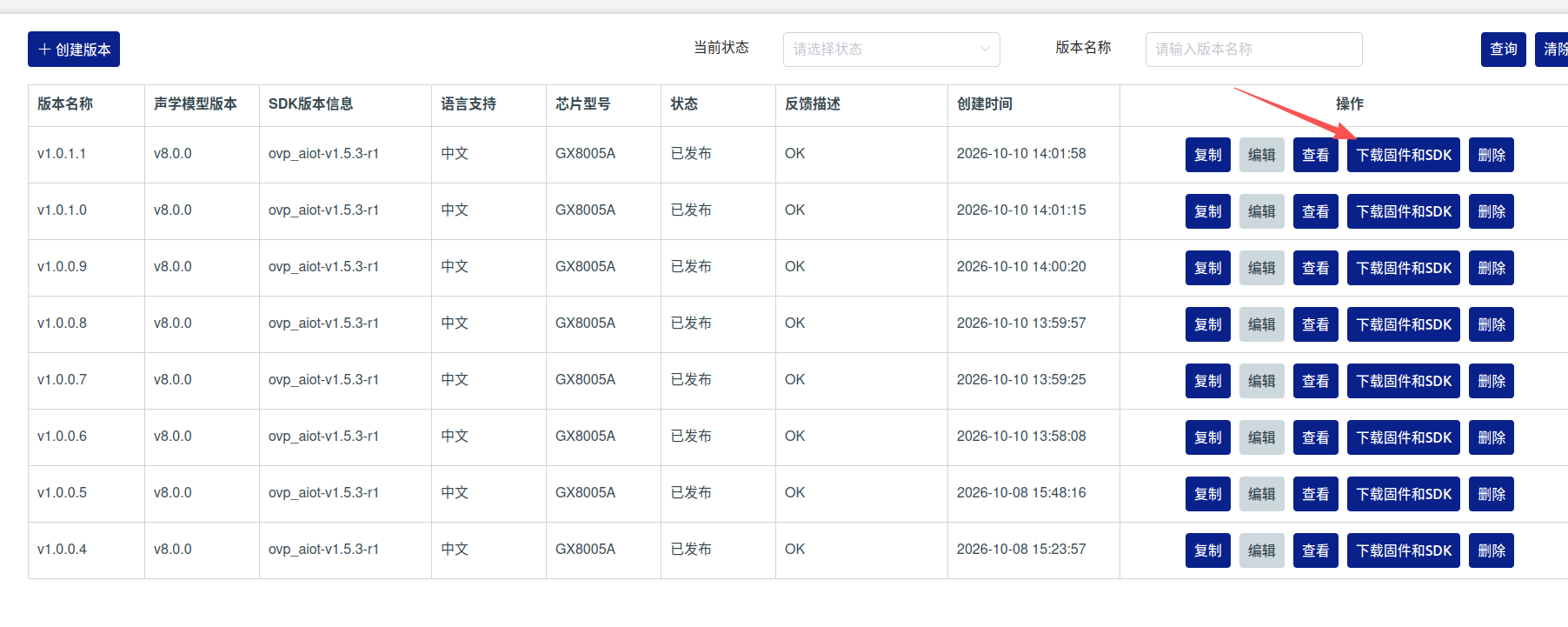
Download the firmware and SDK:
- Download NCDownloader (download address see the guide below) (http://yun.nationalchip.com:10000/l/IF2mba)
- Select Chip Type (chip model, e.g. GX8005/6)
- Click Bin File to select the firmware to be flashed (e.g. the generated package on the web page /output_ovp/mcu_nor.bin)
- Select the serial port, baud rate 1000000/2000000 etc.; if flashing fails, try lowering the baud rate
- Click Start to begin flashing, or hold the Boot pin and reset to enter download mode
- After flashing is complete, press the reset button to restart the device
Flashing success indicator
The tool displaying Operation Successful indicates successful flashing. After restarting the device, verify the wake-up, command recognition, and playback functions according to the platform configuration.
2. SDK Compilation*
SDK compilation environment
The GX8005/6 chip SDK must be compiled in a Linux environment. On Windows, Ubuntu can be installed via VirtualBox.
- Install the toolchain: Extract the Xuantie-900 gcc toolchain to
/opt, and add itsbindirectory toPATH. For details, see Setting Up the Development Environment. - Extract the SDK package: Extract the generated package on the web page /sdk_ovp_aiot_ovp_aiot-v1.5.3-r1.zip
- Copy the firmware configuration and compile:
cp ../sdk.config .config make menuconfig make clean;make - Firmware generation and application development:
- Firmware generation:
sdk_ovp_aiot_ovp_aiot-v1.5.3-r1/output/mcu_nor.bin - Application development: files under the
sdk_ovp_aiot_ovp_aiot-v1.5.3-r1/app/offline_asr_app/directory; for details, see Application Development
- Firmware generation: